Install NVIDIA Drivers on Red Hat Enterprise Linux 9.x

Introduction
In this article, I'll tell you how to install the NVIDIA GPU drivers on Red Hat Enterprise Linux (RHEL) 9.x
Check system has an NVIDIA GPU installed
You can check whether your system has an NVIDIA GPU installed with the following command
lspci | egrep 'VGA|3D'

You can see NVIDIA Tesla T4 GPU installed in the system.
Install the EPEL Repository
We will have to install the required build tools and the required dependency libraries for compiling the NVIDIA kernel modules. Some of these are available in the RHEL 9 EPEL repository.
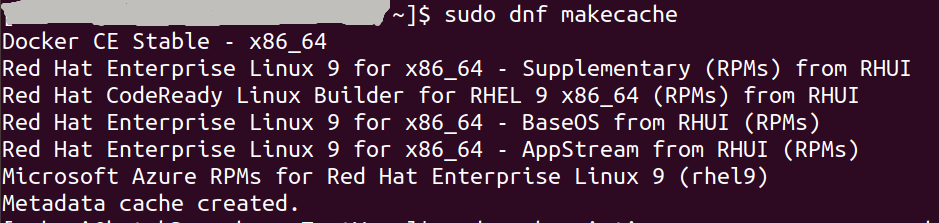
First, update the DNF package repository cache with the following command
sudo dnf makecache
Enable the official RHEL 9 CodeReady Builder package repository and install it.
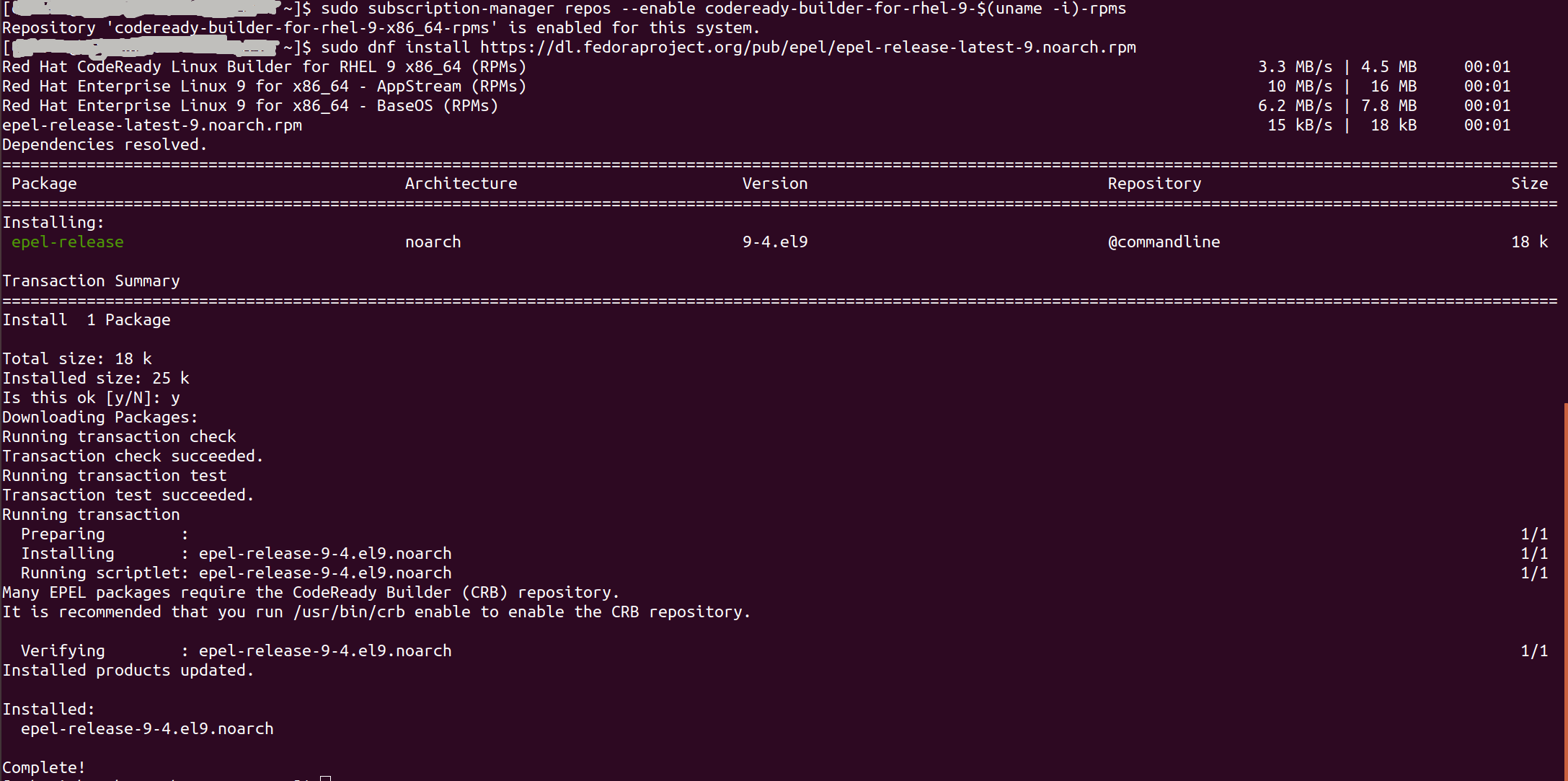
Following are the commands to enable and install respectively
sudo subscription-manager repos --enable codeready-builder-for-rhel-9-$(uname -i)-rpms
sudo dnf install https://dl.fedoraproject.org/pub/epel/epel-release-latest-9.noarch.rpm
To confirm the installation, press Y and then press <Enter>
The epel-release package should be installed, and the EPEL repository should be enabled.
For the changes to take effect, update the DNF package repository cache with the following command
sudo dnf makecache

Install the Required Dependencies and Build Tools for Compiling NVIDIA Kernel Modules
To install the required build tools and dependency libraries for compiling the NVIDIA kernel modules on RHEL 9, run the following command
sudo dnf install kernel-devel-$(uname -r) kernel-headers-$(uname -r) gcc make dkms acpid libglvnd-glx libglvnd-opengl libglvnd-devel pkgconfig
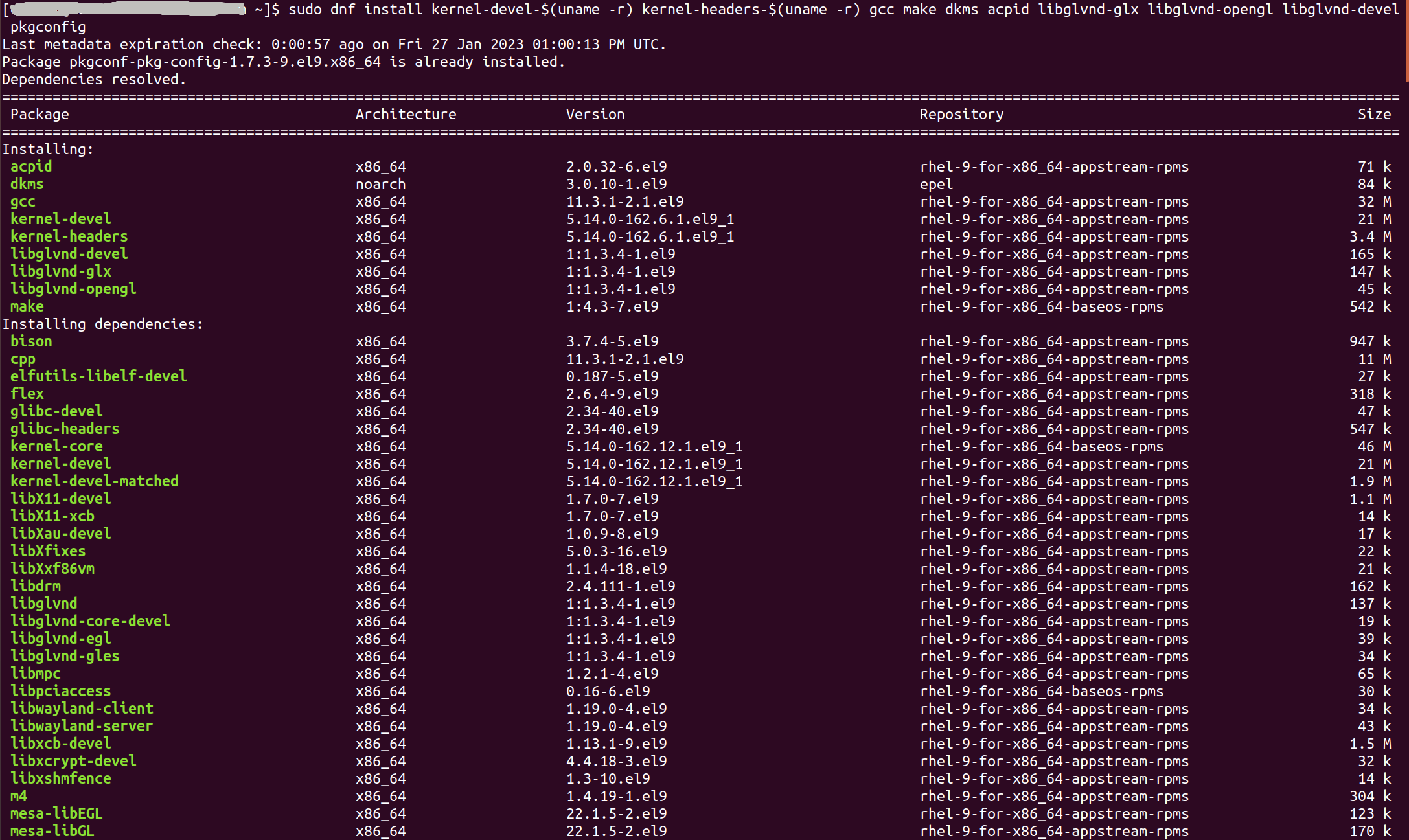
To confirm the installation, press Y and then press <Enter>.
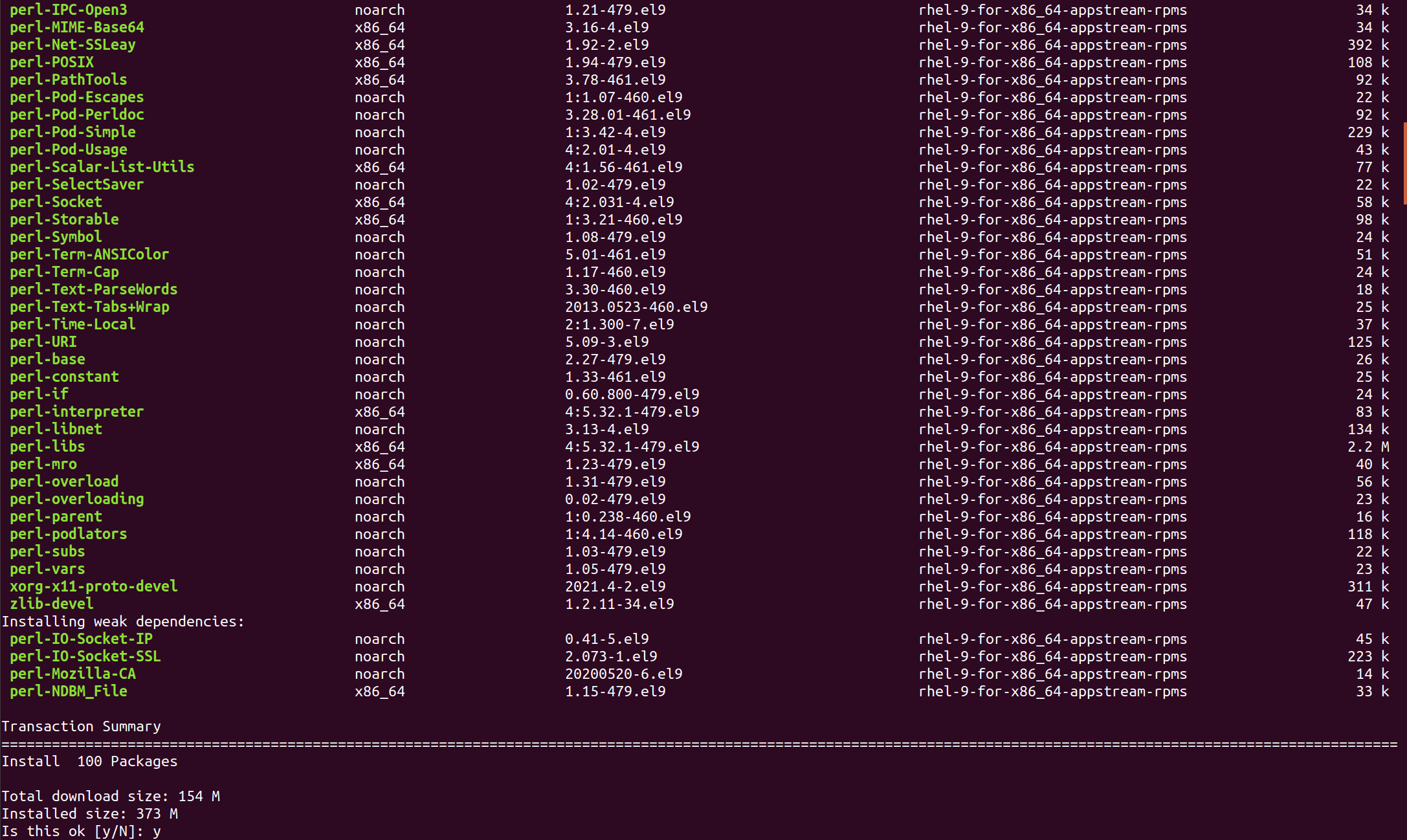
The required packages are being downloaded from the internet. It will take a while to complete.
Once the packages are downloaded, you will be asked to confirm the GPG key of the EPEL repository.
To confirm the GPG key, press Y and then press <Enter>.
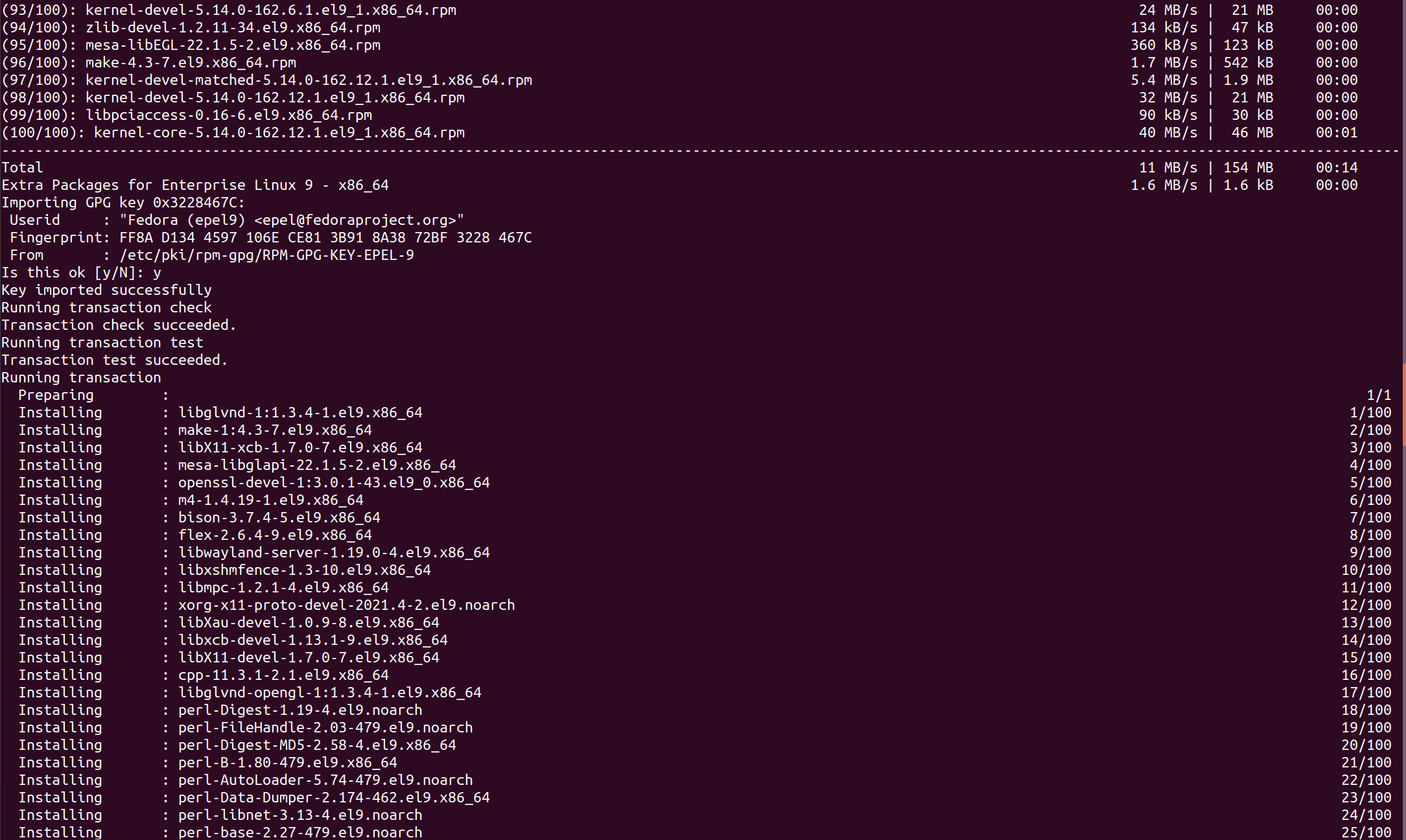
The required dependency libraries and build tools for compiling the NVIDIA kernel module should be installed at this point.
Add the Official NVIDIA CUDA Package Repository
To add the official NVIDIA CUDA package repository on RHEL 9, run the following command
sudo dnf config-manager --add-repo http://developer.download.nvidia.com/compute/cuda/repos/rhel9/$(uname -i)/cuda-rhel9.repo

For the changes to take effect, update the DNF package repository cache with the following command
sudo dnf makecache

Install the Latest NVIDIA GPU Drivers
To install the latest version of the NVIDIA GPU drivers on RHEL 9, run the following command
sudo dnf module install nvidia-driver:latest-dkms
To confirm the installation, press Y and then press <Enter>.
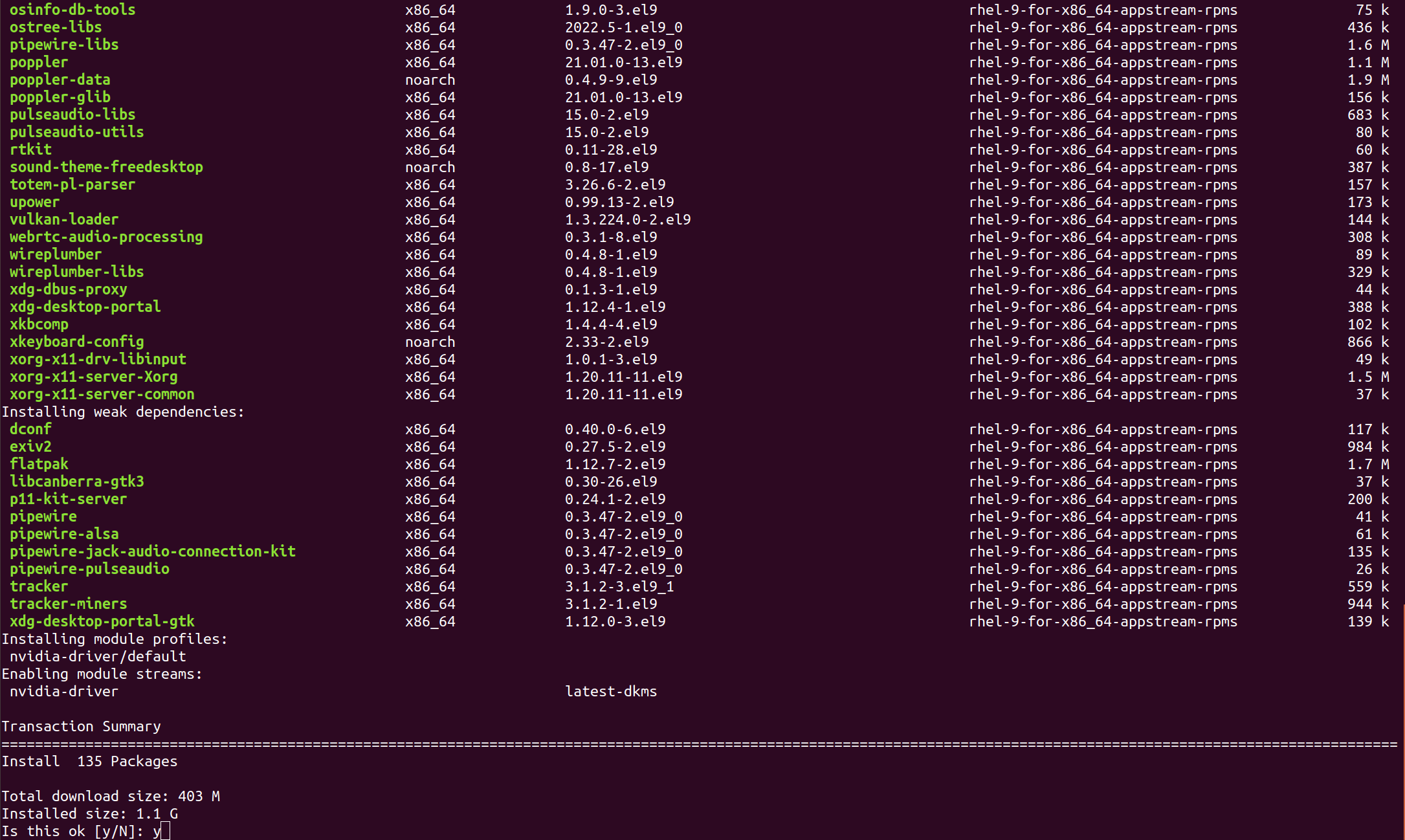
NVIDIA GPU drivers packages and the required dependency packages are being downloaded from the internet. It will take a while to complete.
Once the packages are downloaded, you will be asked to confirm the GPG key of the official NVIDIA package repository. Press Y and then press <Enter> to confirm the GPG key.
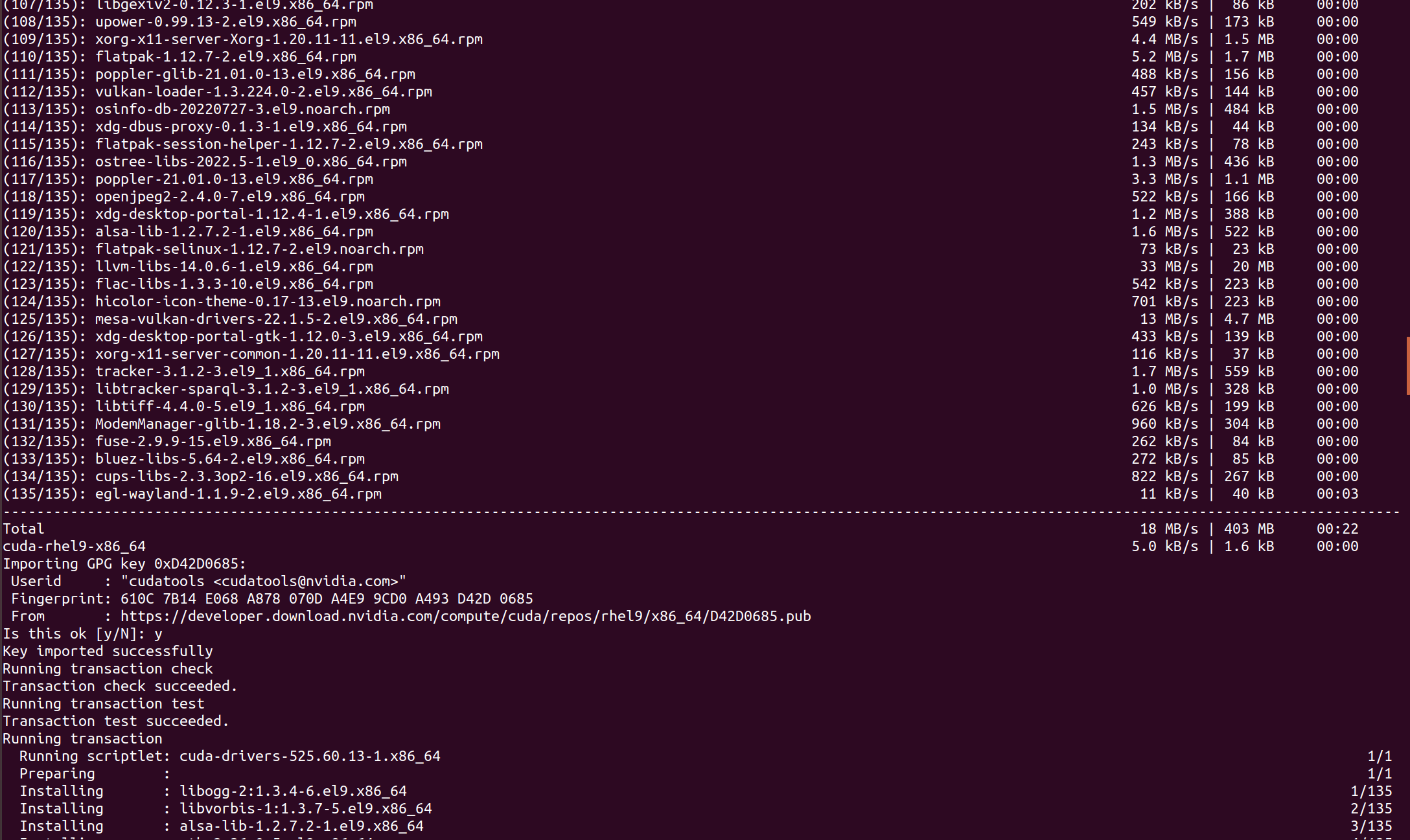
NVIDIA GPU drivers should be installed at this point.

For the changes to take effect, restart the system with the following command
sudo reboot
Verify NVIDIA Drivers are Installed Properly
Once the system boots, you should see that the proprietary NVIDIA GPU drivers are used with the following command
lsmod | grep nvidia

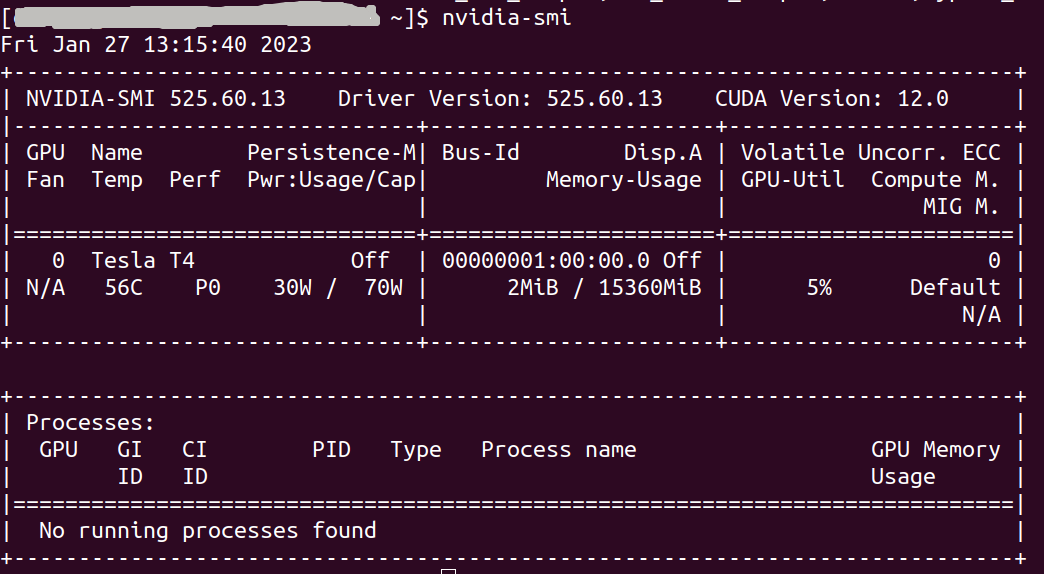
You should also be able to run the NVIDIA command-line programs like nvidia-smi.
nvidia-smi
Conclusion
In this article, We have seen how to add the official NVIDIA CUDA repository on RHEL 9.x I have also shown you how to install the latest version of the proprietary NVIDIA GPU drivers on RHEL 9.x
About the author
I am a software engineer. Documenting my DevOps journey
Comments
Join the discussionNo comments yet. Be the first to comment.